11 自定义创建项目
Vue CLI
介绍
Vue CLI 是一个基于 Vue.js 进行快速开发的完整系统,提供:
通过
@vue/cli实现的交互式的项目脚手架。通过
@vue/cli+@vue/cli-service-global实现的零配置原型开发。一个运行时依赖 (
@vue/cli-service),该依赖:- 可升级;
- 基于 webpack 构建,并带有合理的默认配置;
- 可以通过项目内的配置文件进行配置;
- 可以通过插件进行扩展。
一个丰富的官方插件集合,集成了前端生态中最好的工具。
一套完全图形化的创建和管理 Vue.js 项目的用户界面。
Vue CLI 致力于将 Vue 生态中的工具基础标准化。它确保了各种构建工具能够基于智能的默认配置即可平稳衔接,这样你可以专注在撰写应用上,而不必花好几天去纠结配置的问题。与此同时,它也为每个工具提供了调整配置的灵活性,无需 eject。
安装
pnpm add -g @vue/cli检查版本
vue --version命令行创建项目
创建项目
bashvue create hello-world选择预设配置
bashVue CLI v5.0.8 ? Please pick a preset: Default ([Vue 3] babel, eslint) # 使用 Vue 3 版本,并且默认启用了 babel 和 eslint 插件 Default ([Vue 2] babel, eslint) # 使用 Vue 2 版本,并且默认启用了 babel 和 eslint 插件 > Manually select features # 手动选择特性和插件选择项目所需的功能
bashVue CLI v5.0.8 ? Please pick a preset: Manually select features ? Check the features needed for your project: (Press <space> to select, <a> to toggle all, <i> to invert selection, and <enter> to proceed) # 按空格键选择功能,按下 a 键可以全选,按下 i 键可以反选,按下回车键可以继续 (*) Babel # 使用 Babel 转译代码,* 表示已经选择 ( ) TypeScript # 使用 TypeScript 编写代码 ( ) Progressive Web App (PWA) Support # 支持 PWA,PWA 是一种可以像原生应用一样运行的 Web 应用程序 (*) Router # 使用 Vue Router,Router 是一个用于管理应用程序路由的工具 ( ) Vuex # 使用 Vuex,Vuex 是一个用于管理 Vue.js 应用程序状态的工具 (*) CSS Pre-processors # 使用 CSS 预处理器,用于增强 CSS 功能 (*) Linter / Formatter # 使用 Linter 和 Formatter,代码检查和格式化工具可以帮助开发者编写更规范和易读的代码 ( ) Unit Testing # 单元测试,用于测试代码单元 ( ) E2E Testing # E2E 测试,端到端测试是一种用于测试整个应用程序的方法选择 vue 版本
bashVue CLI v5.0.8 ? Please pick a preset: Manually select features ? Check the features needed for your project: Babel, Router, CSS Pre-processors, Linter ? Choose a version of Vue.js that you want to start the project with 3.x # 使用 Vue 3.x > 2.x # 使用 Vue 2.x选择路由模式:history 或者 hash
bashVue CLI v5.0.8 ? Please pick a preset: Manually select features ? Check the features needed for your project: Babel, Router, CSS Pre-processors, Linter ? Choose a version of Vue.js that you want to start the project with 2.x ? Use history mode for router? (Requires proper server setup for index fallback in production) (Y/n) # 是否使用 history 模式,history 模式需要服务器支持选择 CSS 预处理器
bashVue CLI v5.0.8 ? Please pick a preset: Manually select features ? Check the features needed for your project: Babel, Router, CSS Pre-processors, Linter ? Choose a version of Vue.js that you want to start the project with 2.x ? Use history mode for router? (Requires proper server setup for index fallback in production) Yes ? Pick a CSS pre-processor (PostCSS, Autoprefixer and CSS Modules are supported by default): Sass/SCSS (with dart-sass) # 使用 Sass/SCSS 预处理器 > Less # 使用 Less 预处理器 Stylus # 使用 Stylus 预处理器选择代码检查工具
bashVue CLI v5.0.8 ? Please pick a preset: Manually select features ? Check the features needed for your project: Babel, Router, CSS Pre-processors, Linter ? Choose a version of Vue.js that you want to start the project with 2.x ? Use history mode for router? (Requires proper server setup for index fallback in production) Yes ? Pick a CSS pre-processor (PostCSS, Autoprefixer and CSS Modules are supported by default): Less ? Pick a linter / formatter config: ESLint with error prevention only # 只使用 ESLint 进行错误检查 ESLint + Airbnb config # 使用 ESLint 和 Airbnb 配置 > ESLint + Standard config # 使用 ESLint 和 Standard 配置 ESLint + Prettier # 使用 ESLint 和 Prettier 配置选择代码检查工具的附加功能
bashVue CLI v5.0.8 ? Please pick a preset: Manually select features ? Check the features needed for your project: Babel, Router, CSS Pre-processors, Linter ? Choose a version of Vue.js that you want to start the project with 2.x ? Use history mode for router? (Requires proper server setup for index fallback in production) Yes ? Pick a CSS pre-processor (PostCSS, Autoprefixer and CSS Modules are supported by default): Less ? Pick a linter / formatter config: ESLint + Standard config ? Pick additional lint features: (Press <space> to select, <a> to toggle all, <i> to invert selection, and <enter> to proceed) (*) Lint on save # 保存时进行代码检查 ( ) Lint and fix on commit # 提交时进行代码检查和修复选择配置文件的存放位置
bashVue CLI v5.0.8 ? Please pick a preset: Manually select features ? Check the features needed for your project: Babel, Router, CSS Pre-processors, Linter ? Choose a version of Vue.js that you want to start the project with 2.x ? Use history mode for router? (Requires proper server setup for index fallback in production) Yes ? Pick a CSS pre-processor (PostCSS, Autoprefixer and CSS Modules are supported by default): Less ? Pick a linter / formatter config: ESLint + Standard config ? Pick additional lint features: Lint on save ? Where do you prefer placing config for Babel, ESLint, etc.? (Use arrow keys) > In dedicated config files # 在单独的配置文件中,也就是 babel.config.js、.eslintrc.js 等文件中 In package.json # 在 package.json 中是否将当前配置保存为预设配置
bashVue CLI v5.0.8 ? Please pick a preset: Manually select features ? Check the features needed for your project: Babel, Router, CSS Pre-processors, Linter ? Choose a version of Vue.js that you want to start the project with 2.x ? Use history mode for router? (Requires proper server setup for index fallback in production) Yes ? Pick a CSS pre-processor (PostCSS, Autoprefixer and CSS Modules are supported by default): Less ? Pick a linter / formatter config: ESLint + Standard config ? Pick additional lint features: Lint on save ? Where do you prefer placing config for Babel, ESLint, etc.? In dedicated config files ? Save this as a preset for future projects? (y/N) N # 是否将当前配置保存为预设配置等待项目创建
bashVue CLI v5.0.8 ✨ Creating project in E:\git\learn-vue\hello-world. 🗃 Initializing git repository... ⚙️ Installing CLI plugins. This might take a while... 🚀 Invoking generators... 📦 Installing additional dependencies... ⚓ Running completion hooks... 📄 Generating README.md... 🎉 Successfully created project hello-world. 👉 Get started with the following commands: $ cd hello-world $ pnpm run serve运行项目
bashcd hello-world pnpm run serve项目目录结构
bash❯ tre . ├── .browserslistrc ├── .editorconfig ├── .eslintrc.js ├── .gitignore ├── .npmrc ├── README.md ├── babel.config.js ├── jsconfig.json ├── package.json ├── pnpm-lock.yaml ├── public │ ├── favicon.ico │ └── index.html ├── src │ ├── App.vue │ ├── assets │ │ └── logo.png │ ├── components │ │ └── HelloWorld.vue │ ├── main.js │ ├── router │ │ └── index.js │ └── views │ ├── AboutView.vue │ └── HomeView.vue └── vue.config.js
图形化界面创建和管理项目
通过 vue ui 命令以图形化界面创建和管理项目(会打开一个浏览器窗口,并以图形化界面将你引导至项目创建的流程)
vue ui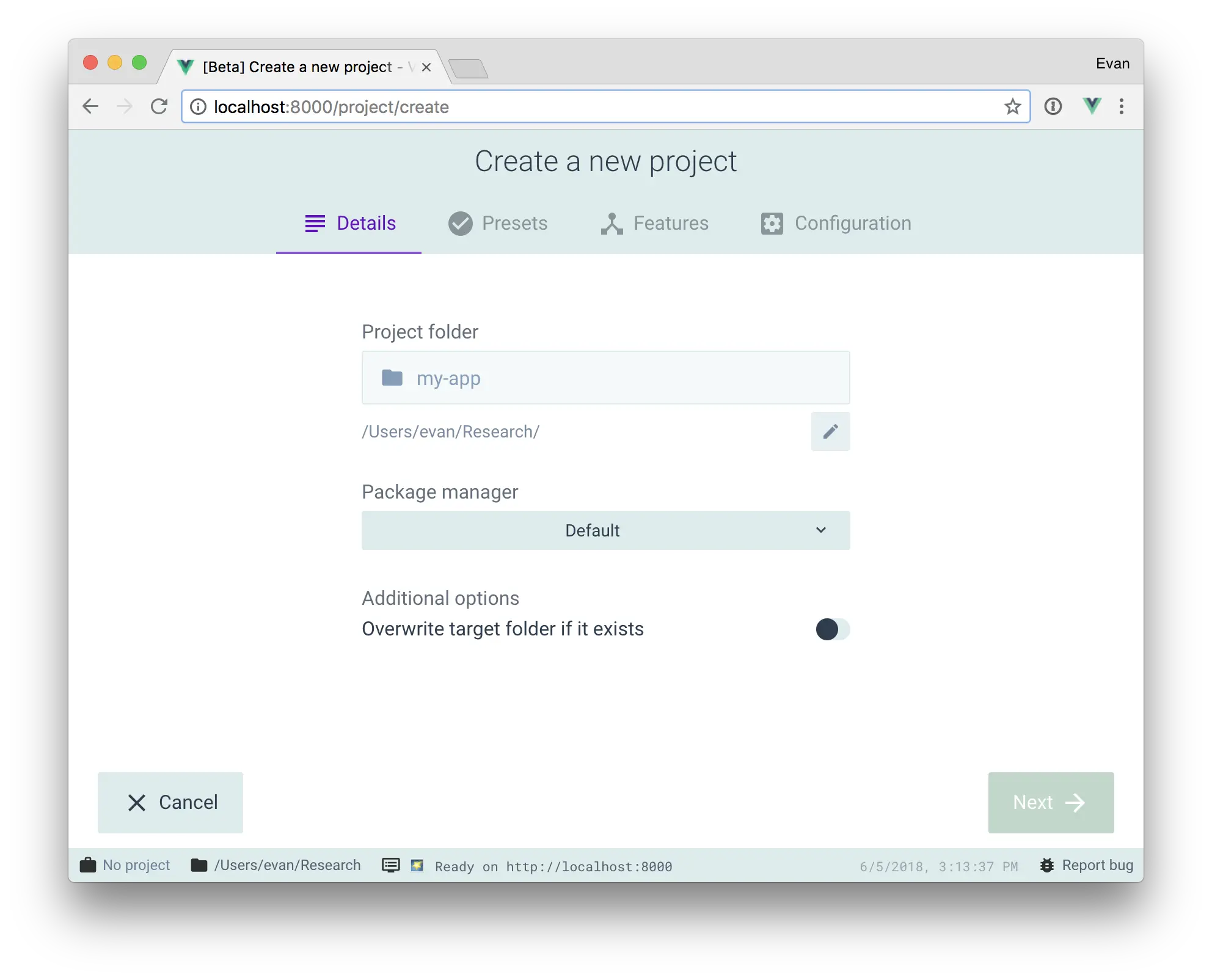
create-vue
GitHub - vuejs/create-vue: 🛠️ The recommended way to start a Vite-powered Vue project
create-vue 使用 npm create vue@latest 一行命令就能快速的创建基于 Vite 的 Vue 项目。
- Vue Cli 基于 webpack。初始化 Vue-Cli 项目时通过全局的形式安装
@vue/cli, 然后通过vue create project-name命令进行项目安装。 - create-vue 基于 vite。初始化项目直接使用
npm create vue@legacy/vue@latest即可。本质上是使用create-vue脚手架创建 vite 项目
与 Vue CLI 的区别
- Vue CLI 基于 webpack,而
create-vue基于 Vite。Vite 开箱即用地支持 Vue CLI 项目中的大多数配置约定,并且由于其极快的启动速度和热模块替换速度,提供了明显更好的开发体验。 - 与 Vue CLI 不同,它本身只是一个脚手架工具:它根据你选择的功能创建一个预配置的项目,
create-vue并将其余部分委托给 Vite。以这种方式搭建脚手架的项目可以直接利用与 Rollup 兼容的 Vite 插件生态系统。
命令行创建项目
创建项目
bash// vue3 pnpm create vue@latest // vue2 pnpm create vue@legacy配置项目
bashVue.js - The Progressive JavaScript Framework √ Project name: ... hello-vue # 项目名称 √ Add TypeScript? ... No / Yes # 是否使用 TypeScript √ Add JSX Support? ... No / Yes # 是否使用 JSX √ Add Vue Router for Single Page Application development? ... No / Yes # 是否使用 Vue Router √ Add Pinia for state management? ... No / Yes # 是否使用 Pinia,Pinia 是一个 Vue 3 的状态管理库 √ Add Vitest for Unit Testing? ... No / Yes # 是否使用 Vitest,Vitest 是一个 Vue 3 的单元测试库 √ Add Cypress for both Unit and End-to-End testing? ... No / Yes # 是否使用 Cypress 进行单元测试和端到端测试 √ Add ESLint for code quality? ... No / Yes # 是否使用 ESLint 进行代码检查 √ Add Prettier for code formatting? ... No / Yes # 是否使用 Prettier 进行代码格式化 Scaffolding project in E:\git\learn-vue\hello-vue... Done. Now run: cd hello-vue pnpm install pnpm lint pnpm dev运行项目
bashcd hello-vue pnpm install # 安装依赖 pnpm dev # 运行项目项目目录结构
bash❯ tre . ├── index.html ├── package.json ├── public │ └── favicon.ico ├── README.md ├── src │ ├── App.vue │ ├── assets │ │ ├── base.css │ │ ├── logo.svg │ │ └── main.css │ ├── components │ │ ├── HelloWorld.vue │ │ ├── icons │ │ │ ├── IconCommunity.vue │ │ │ ├── IconDocumentation.vue │ │ │ ├── IconEcosystem.vue │ │ │ ├── IconSupport.vue │ │ │ └── IconTooling.vue │ │ ├── TheWelcome.vue │ │ └── WelcomeItem.vue │ └── main.js └── vite.config.js
ESlint
代码规范:一套写代码的约定规则。例如:赋值符号的左右是否需要空格?一句结束是否是要加;?…
ESLint: 是一个代码检查工具,用来检查你的代码是否符合指定的规则 (你和你的团队可以自行约定一套规则)。在创建项目时,我们使用的是 JavaScript Standard Style 代码风格的规则。
ESLint 是一个根据方案识别并报告 ECMAScript/JavaScript 代码问题的工具,其目的是使代码风格更加一致并避免错误。在很多地方它都与 JSLint 和 JSHint 类似,除了:
- ESLint 使用 Espree 对 JavaScript 进行解析。
- ESLint 在代码中使用 AST 评估方案。
- ESLint 完全是插件式的,每个规则都是一个插件,你可以在运行时中添加更多插件。
安装
pnpm add -D eslint
JavaScript standard 代码规范
下面是这份规则中的一小部分:
- 字符串使用单引号 – 需要转义的地方除外
- 关键字后加空格
if (condition) { … } - 函数名后加空格
function name (arg) { … } - 坚持使用全等
===摒弃==一但在需要检查null || undefined时可以使用obj == null - ……
ESLint 规则列表
- 保存代码后运行项目,如果代码中有格式错误则控制台中中会报错。如果你不认识命令行中的语法报错是什么意思,你可以根据错误代码(
func-call-spacing,space-in-parens,…)去 ESLint 规则列表中查找其具体含义。 - 打开 ESLint 规则表,使用页面搜索(Ctrl + F)这个代码,查找对该规则的一个释义。
VSCode Eslint 插件自动修正
VSCode Eslint 插件功能
- eslint 会自动高亮错误显示
- 通过配置,eslint 会自动帮助我们修复错误
VSCode 安装 Eslint 插件:
ext install dbaeumer.vscode-eslintVSCode 相关配置
bash// 当保存的时候,eslint 自动帮我们修复错误 "editor.codeActionsOnSave": { "source.fixAll": true, "source.fixAll.eslint": true }, // 保存代码,不自动格式化 "editor.formatOnSave": true
注意
- eslint 的配置文件必须在根目录下,这个插件才能才能生效。打开项目必须以根目录打开,一次打开一个项目
- 使用了 eslint 校验之后,把 vscode 带的那些格式化工具全禁用了 Beatify
eslint-plugin-antfu
Github:GitHub - antfu/eslint-plugin-antfu: Anthony extended ESLint rules.
rules:GitHub - antfu/eslint-config: Anthony's ESLint config preset
安装:
pnpm i -D eslint @antfu/eslint-config配置文件
ECMAScript 标准(With
"type": "module"inpackage.json)js// eslint.config.js import antfu from '@antfu/eslint-config' export default antfu({ formatters: { /** * Format CSS, LESS, SCSS files, also the `<style>` blocks in Vue * By default uses Prettier */ css: true, /** * Format HTML files * By default uses Prettier */ html: true, /** * Format Markdown files * Supports Prettier and dprint * By default uses Prettier */ markdown: 'prettier', }, })CommonJS 规范
js// eslint.config.js const antfu = require('@antfu/eslint-config').default module.exports = antfu()Legacy config (eslint < 9.0)
js// eslint.config.js const antfu = require('@antfu/eslint-config').default const { FlatCompat } = require('@eslint/eslintrc') const compat = new FlatCompat() module.exports = antfu( { ignores: [], }, // Legacy config ...compat.config({ extends: [ 'eslint:recommended', // Other extends... ], }), // Other flat configs... )
运行
json{ "scripts": { "lint": "eslint .", "lint:fix": "eslint . --fix" } }legacy config 升级为 flat config:
pnpm dlx @antfu/eslint-config@latestVSCode 配置
json{ // Enable the ESlint flat config support "eslint.experimental.useFlatConfig": true, // Disable the default formatter, use eslint instead "prettier.enable": false, "editor.formatOnSave": false, // Auto fix "editor.codeActionsOnSave": { "source.fixAll.eslint": "explicit", "source.organizeImports": "never" }, // Silent the stylistic rules in you IDE, but still auto fix them "eslint.rules.customizations": [ { "rule": "style/*", "severity": "off" }, { "rule": "format/*", "severity": "off" }, { "rule": "*-indent", "severity": "off" }, { "rule": "*-spacing", "severity": "off" }, { "rule": "*-spaces", "severity": "off" }, { "rule": "*-order", "severity": "off" }, { "rule": "*-dangle", "severity": "off" }, { "rule": "*-newline", "severity": "off" }, { "rule": "*quotes", "severity": "off" }, { "rule": "*semi", "severity": "off" } ], // Enable eslint for all supported languages "eslint.validate": ["javascript", "javascriptreact", "typescript", "typescriptreact", "vue", "html", "markdown", "json", "jsonc", "yaml", "toml"] }
Prettier
Prettier 介绍
Prettier 是一个武断的代码格式化工具,为什么说它武断呢,因为它不负责代码检查,只负责按它自己的一套规则进行格式化。而且它的格式化可配置项也很少,上手很简单。
Prettier 特点
Prettier 作为一个格式化代码的工具,其特点就是:具有自己的格式化的规则。
关于代码的格式化风格,每个团队、每个开发者都有自己的喜好,因此关于代码风格的争论也从未停止。公说公有理,婆说婆有理,到底该听谁的呢?Prettier 就是要终结这些争论:大家既然选择使用 Prettier 就默认接受 Prettier 的格式化风格,如果不接受的话就不要使用。
即便如此,Prettier 还是提供了一些可以配置项,因为大家对这些配置有着过于强烈的要求,比如:
- 该使用单引号和双引号
- 语句的末尾要不要加分号
- 缩进使用 tab 还是 whitespace
- 缩进量是 2 还是 4
在实际使用时,我们可以通过配置文件更改这些选项。所幸 Prettier 提供的配置并不多,以后也不打算再增加新的配置项。因此它还是一个具有明显的自我规则的格式化工具。
Prettier 和 ESLint 的区别
Lint 工具中最著名的就是 ESLint 了,其包含的规则分为两部分:
代码格式的规则,例如:
- 每行代码的最大长度
- 关键词之间的空格
代码质量的规则,例如:
- 变量必须先声明后使用
对于代码格式的规则,完全可以使用 Prettier 来代替。而代码质量的规则,Prettier 则无能为力。因此必须借助 ESLint 来做这部分工作。因此,Prettier 专注于格式化代码,而 ESLint 专注于提高代码质量,减少潜在的 bug。
Prettier 安装
pnpm add -D prettierPrettier 使用
配置文件
.prettierignore: 无需使用 Prettier 进行代码格式化的文件或者目录名,一般可以保持和.gitignore的内容相同.prettierrc.toml:Prettier 的配置文件。
格式化脚本:在
package.json的scripts增加脚本,就可以通过命令行格式化我们的代码文件。json{ "scripts": { "prettier": "prettier --write ." } }
VSCode Prettier 插件
安装:
ext install esbenp.prettier-vscode项目中安装 prettier:
npm install prettier -D --save-exact设置为默认格式化工具
json{ "editor.defaultFormatter": "esbenp.prettier-vscode", "[javascript]": { "editor.defaultFormatter": "esbenp.prettier-vscode", "editor.formatOnSave": true } }
插件具体配置项请看 官方文档
配合 ESLint 使用
ESLint 的规则集中也包括一些代码格式的规则,因此如果在 VSCode 中配置了使用 ESLint 做自动修复,这和 Prettier 就会产生冲突。因此需要使用 eslint-config-prettier 配置,把和 Prettier 冲突的格式化规则禁用掉。
安装
@vue/eslint-config-prettierbashpnpm add -D @vue/eslint-config-prettier修改 ESLint 配置
diff{ "extends": [ "other config", "@vue/eslint-config-prettier", "prettier", ] }eslint-config-prettier这个配置就是把所有跟代码格式相关的规则禁用掉,所以一定要保证"prettier"在extends中的最后位置。这样,在编辑器中 ESLint 就不会报关于格式的问题了。eslint-config-prettier不仅会禁用 ESLint 默认规则中的格式规则,也会禁用诸如eslint-plugin-vue、eslint-plugin-react等插件的所有关于格式的规则,因此只需要在extends中增加"prettier"即可。在prettier@8.0.0之前的版本,可能需要添加"prettier/vue","prettier/react"等配置,在8.0.0之后,所有的规则都集中到了一起,所以无需再指定上述配置。
Oxlint
Oxlint 介绍
Oxc (The Oxidation Compiler) 是一个用 Rust 编写的 JavaScript 和 TypeScript 高性能工具集合。Oxc 正在构建一个解析器、linter、格式化程序、转译器、压缩器、解析器。
Oxlint 是一种静态代码分析工具,旨在通过检测错误和执行代码样式规则来提高代码质量。与用 JavaScript 编写的 ESLint 不同,Oxlint 是用 Rust 开发的,Rust 是一种以其性能和安全性而闻名的语言。这种核心技术的差异赋予了 Oxlint 显著的速度优势。
oxlint 是 Oxc 项目旗下的一款产品,Oxc 作为一款 Rust 实现的前端工具链集合,包括:
- linter,即 oxlint,对标 Eslint
- Parser,即 oxc_parser,用于解析.js(x) 和.ts(x),对标 swc,基准测试据称比 swc 快 2 倍
- Resolver,解析 esm、cjs 文件路径,对标 webpack/enhanced-resolve,基准测试据称比 webpack 快 28 倍
- formatter,对标 Prettier,还未公布
- transpiler,对标 babel,用于将高级语法转译为低级语法,还未公布
- minifier,代码压缩工具,还未公布
Oxlint 特点
性能:处理代码的速度比 ESLint 快 50-100 倍,并且随着 CPU 核心的数量而扩展。
为正确性进行代码检查
- OxLint 默认识别错误、冗余或混乱的代码 — 优先考虑正确性而不是一些吹毛求疵的规则(分类为
perf、suspicious、pedantic或style)。 - 它的分类借鉴自了
clippy的 分类规则。初次见,可能会觉得很不适应,但是一旦熟悉,就会觉得这样的的分类是如此的方便,好用! - 运行默认模式(不加任何参数,直接
npx oxlint)识别出来的错误,一般都是需要修正的错误。
- OxLint 默认识别错误、冗余或混乱的代码 — 优先考虑正确性而不是一些吹毛求疵的规则(分类为
使用便捷:oxlint 设计为开箱即用的零配置;甚至 Node.js 也不是必需的。大多数调整可以通过命令行进行,并且从 ESLint 配置文件读取当前正在进行中。
Oxlint 使用
pnpm dlx oxlint@latest # pnpm
npx oxlint@latest # npm
yarn dlx oxlint@latest # yarn
bunx oxlint@latest # bun
deno run oxlint@latest # deno

scoop install oxlint
oxlint更多内容请看 官方文档
eslint-plugin-oxlint
关闭 oxlint 已经支持的规则:GitHub - oxc-project/eslint-plugin-oxlint: Turn off all rules already supported by oxlint
安装
pnpm add eslint-plugin-oxlint --D用法
Flat config (eslint >= 9.0)
js// eslint.config.js import oxlint from 'eslint-plugin-oxlint' export default [ ...// other plugins oxlint.configs['flat/recommended'], // oxlint should be the last one ]Legacy config (eslint < 9.0)
js// .eslintrc.js module.exports = { ... // other config presets: [ ... // other presets "plugin:oxlint/recommended", ], }在 eslint 之前运行 oxlint
json{ "scripts": { "lint": "npx oxlint && npx eslint" } }
VSCode Oxlint 插件
- 插件地址:Oxc - Visual Studio Marketplace
- VSCode 安装:
ext install oxc.oxc-vscode